
Where does yt-dlp download to?
By default, yt-dlp saves files in whatever folder your terminal is currently using—the "working directory." On Windows that's often C:\Users\YourName\ if you opened PowerShell from the Start menu. On Mac it's usually /Users/yourname/. On Linux, your home directory. yt-dlp doesn't have a hidden system folder like a browser Downloads directory unless you cd there first or set a custom path with -o.
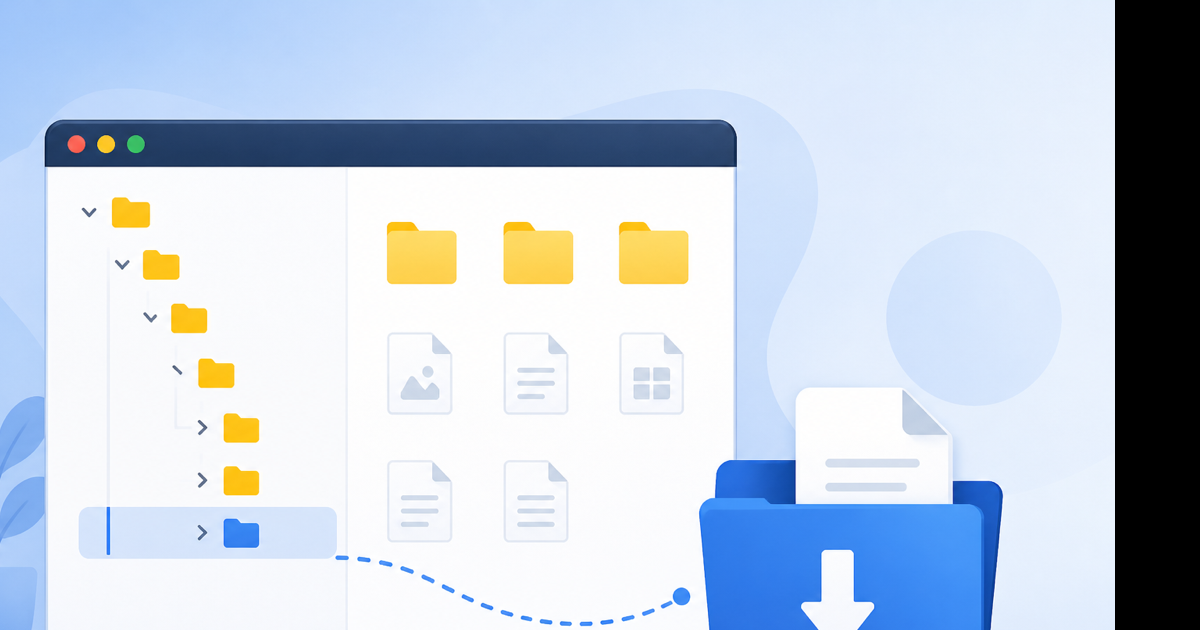
Default behavior in plain English
When you run:
yt-dlp "https://www.youtube.com/watch?v=example"
yt-dlp writes Video Title [id].webm or .mp4 right there—same directory as your shell prompt.
Check where "there" is:
| OS | Command |
|---|---|
| Windows PowerShell | pwd or Get-Location |
| Mac / Linux | pwd |
I once filled my Mac home folder with a playlist because I forgot to cd first. Easy fix, annoying cleanup.
Platform defaults people expect vs reality
| Platform | What people assume | What yt-dlp actually does |
|---|---|---|
| Windows | Downloads\ | Only if you cd there first |
| Mac | ~/Downloads | Same—manual cd ~/Downloads |
| Linux | ~/Downloads | Working directory unless configured |
| Browser converter | Browser Downloads folder | Handled by Chrome/Safari/Edge |
If you want browser-style "always Downloads," set an alias or always cd before running yt-dlp.
Save to Downloads on each OS
Windows:
cd $env:USERPROFILE\Downloads
yt-dlp "URL"
Mac:
cd ~/Downloads
yt-dlp "URL"
Linux:
cd ~/Downloads
yt-dlp "URL"
Files appear with the video title as the filename—special characters get sanitized.
Custom output with -o (recommended)
Control name and folder in one flag:
yt-dlp -o "~/Downloads/%(title)s.%(ext)s" "URL"
Windows PowerShell:
yt-dlp -o "$env:USERPROFILE\Downloads\%(title)s.%(ext)s" "URL"
Useful template tokens:
| Token | Inserts |
|---|---|
%(title)s | Video title |
%(id)s | YouTube video ID |
%(ext)s | File extension |
%(uploader)s | Channel name |
Playlist into subfolder:
yt-dlp -o "~/Downloads/%(uploader)s/%(title)s.%(ext)s" "PLAYLIST_URL"
Config file: set location once
Create yt-dlp.conf so you never hunt for files again.
Mac/Linux path: ~/.config/yt-dlp/config
Windows path: %APPDATA%\yt-dlp\config.txt
Example content:
-o ~/Downloads/%(title)s.%(ext)s
--restrict-filenames
Now every download goes to Downloads without typing -o each time.
Finding a file you already downloaded
- Run
pwdin the same terminal session if still open. - Search by date modified in Downloads or home folder.
- Windows:
Get-ChildItem -Recurse -Filter "*.mp4" | Sort-Object LastWriteTime -Descending | Select -First 5 - Mac:
mdfind -name ".mp4" -onlyin ~(spotlight)
Sort by newest in current folder (Mac/Linux): ls -lt | head
yt-dlp vs browser download location
When I don't want to think about paths at all, I use YouTube to MP4 or YouTube to MP3 in Chrome—the file lands in the browser's Downloads folder with zero config. Tradeoff: less control over naming templates and no playlist automation.
| Method | Default location | Custom path effort |
|---|---|---|
| yt-dlp | Terminal working directory | -o or config file |
| Videozify browser | Browser Downloads | "Save as" dialog |
Both are fine. yt-dlp wins when you're batching fifty files with structured folders.
Partial files and temp data
Interrupted downloads may leave .part or .ytdl fragments in the same folder. Re-run the command to resume, or delete fragments manually.
yt-dlp cache (thumbnails, archive lists) lives separately—~/.cache/yt-dlp on Linux, similar paths elsewhere. Not the same as your video output.
Related setup guides
Conclusion
yt-dlp writes to your terminal's current folder unless you override with -o or a config file. cd ~/Downloads before running, or set a permanent template path. For zero path guesswork, use a browser converter and let Chrome handle the folder.
Simple save: YouTube to MP3 converter — download goes to your browser Downloads folder.