
How to save YouTube clips to camera roll
You save YouTube clips to your iPhone camera roll by downloading the clip as an MP4 through Safari, then moving the file into the Photos app via the Share sheet. iOS doesn't let you long-press a YouTube video and tap "Save to Photos"—you need an intermediate MP4 file first. how to save youtube clips to camera roll usually means a Short, a highlight, or a segment you'll repost or edit—not a two-hour documentary. This guide covers that workflow on iOS 17 and 18, including the Files-app detour Photos sometimes requires.
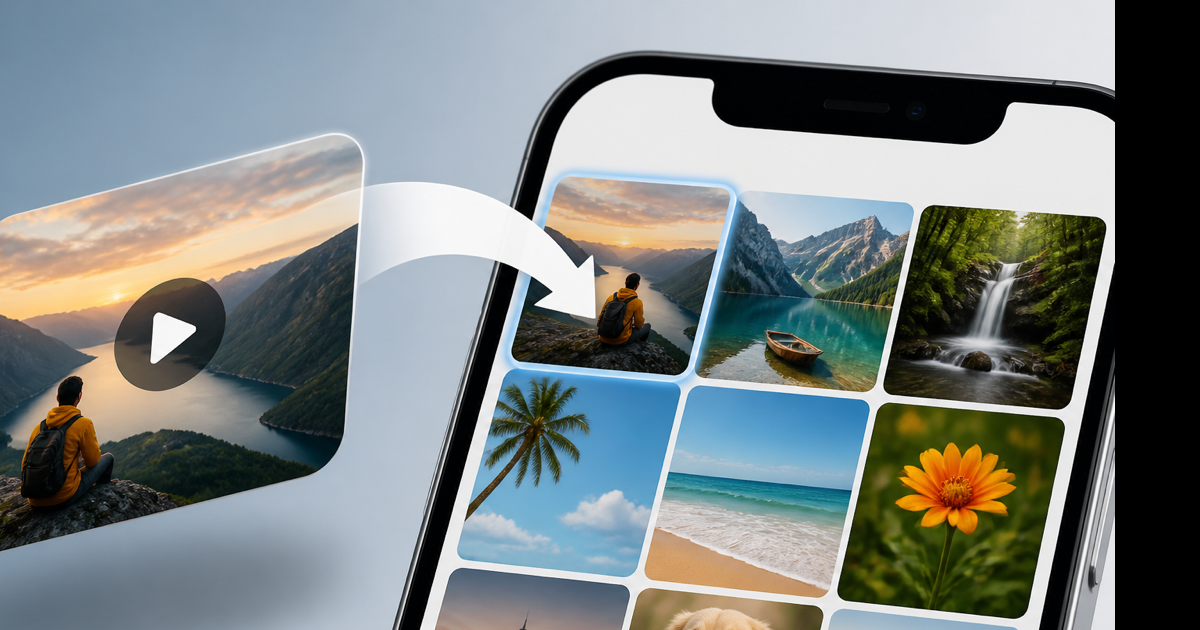
Clip vs full video: same steps, different size
A "clip" here is any short YouTube video—a 45-second Short, a 3-minute highlight, a snippet you'll trim later.
| Clip length | 720p MP4 size (typical) |
|---|---|
| 30 sec Short | 8–20 MB |
| 3 min clip | 40–80 MB |
| 10 min clip | 120–250 MB |
Shorter clips download faster and land in Photos without eating storage. For audio-only memes, skip video entirely—YouTube to MP3 won't hit the camera roll (Photos wants video or image), but it's fine for ringtones in GarageBand.
Step 1: Copy the clip URL
- Open the YouTube app or youtube.com in Safari.
- Navigate to the clip or Short.
- Tap Share → Copy link.
Make sure the video plays publicly—private or age-gated links fail downstream.
Step 2: Download MP4 in Safari
- Open a YouTube to MP4 converter in Safari (Chrome works too; Safari integrates cleanly with Files).
- Paste the URL.
- Pick 720p—overkill for vertical Shorts but keeps quality if you'll crop.
- Tap convert, then download when the button appears.
- Tap the download icon in Safari's toolbar. Confirm the
.mp4finished.
The file sits in Safari's Downloads folder first—not Photos yet. That's normal.
Step 3: Move to camera roll (Photos)
Method A — from Safari Downloads:
- Tap the downloaded MP4 in Safari's download manager.
- Tap the Share icon (square with arrow).
- Scroll to Save Video (or Save to Photos).
- Open Photos → Recents to confirm.
Method B — via Files (when Save Video is missing):
- In Safari downloads, tap Share → Save to Files. Pick On My iPhone → Downloads (or a folder you created).
- Open the Files app. Find the MP4.
- Long-press the file → Share → Save Video.
Method C — trim then save:
If you only need part of the clip, save the full MP4 to Files, trim in Photos or iMovie, export back to Photos. Or upload to our video trimmer on desktop first, then AirDrop to iPhone.
YouTube Premium won't put clips in camera roll
Premium Download saves inside the YouTube app only. Those files don't appear in Photos and can't be exported to the camera roll through official means. For camera roll access, use the Safari converter path—even if you pay for Premium.
Shorts to camera roll (vertical video)
Shorts URLs work like any YouTube link. Download MP4 → Save Video. The clip stays vertical (9:16) in Photos. Reels-style edits in CapCut or iMovie start from that local file.
For iPhone-specific download context beyond camera roll, see download YouTube on iPhone and download clips on iPhone.
Troubleshooting camera roll saves
"Save Video" not in Share sheet: The file may not be a compatible MP4. Re-download via the converter; avoid renaming to .mov manually.
Video saved but black screen in Photos: Corrupted download—delete, re-download on stable Wi-Fi.
Storage full: iOS silently fails saves. Check Settings → General → iPhone Storage. A 3-minute 720p clip needs at least 100 MB free headroom.
iCloud Photos delay: If iCloud Photos is on, the clip may upload before appearing on all devices—wait on Wi-Fi or check Recently Added.
Age-restricted source: Fix in YouTube app first (sign in, verify age), then retry conversion.
Legal quick note
Saving clips you don't have rights to can violate YouTube's Terms of Service and copyright. Your own uploads, Creative Commons clips, and content creators explicitly permit—that's the intended use. Meme reposts and commercial reuse need permission, not just a camera roll file.
Conclusion
Save YouTube clips to camera roll: copy URL, download MP4 in Safari, Share → Save Video to Photos. Skip Premium if you need the file in Photos—it won't get you there.
Got a clip link ready? Use our free YouTube to MP4 converter—paste in Safari, download, then save to your camera roll.