
How to rip YouTube videos to MP4 or MP3
You rip a YouTube video by copying its URL and saving the stream as a local file—usually MP4 for video or MP3 for audio—through a browser-based converter. "Rip" just means pulling the media off the platform into a file you control. I use this when I need a lecture in a folder before a flight, not when I want offline replay inside the YouTube app. Below: what ripping actually means, the fastest browser path, when audio-only makes more sense, and the errors that mean the video won't rip at all.
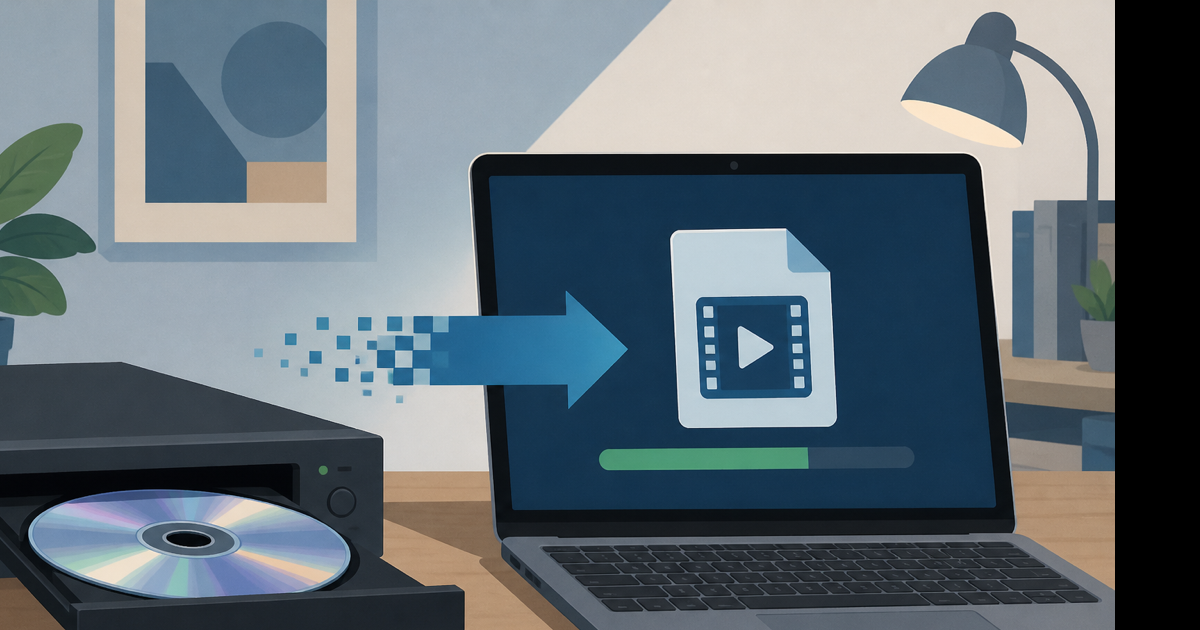
What "rip" means for YouTube (and what it doesn't)
People searching how to rip youtube videos usually want a file on disk—not a bookmark, not a screen recording, not Premium offline inside the app.
| Term | What you get |
|---|---|
| Rip to MP4 | Full video file you can edit or share |
| Rip to MP3 | Audio only—smaller, good for music or podcasts |
| Premium offline | Playback inside YouTube only; not a rip |
| Screen record | Lower quality, bigger file, more work |
Ripping through a web tool is one URL at a time. Playlists need you to repeat the steps per video—there's no honest one-click "rip entire channel" button on Videozify.
Rip YouTube video to MP4 (Windows, Mac, phone)
This works in Chrome, Safari, Edge, or Firefox. No install.
- Open the video on youtube.com.
- Copy the full URL from the address bar (mobile: Share → Copy link).
- Open a YouTube to MP4 converter in a new tab.
- Paste the URL. Pick 720p unless you need sharp 1080p detail.
- Wait for processing—a three-minute clip usually finishes in under a minute.
- Download the
.mp4. On PC it lands in Downloads; on iPhone use Share → Save to Files.
Last week I ripped a 4:12 conference talk at 720p: about 62 MB. Same clip at 1080p was 148 MB. For a talking-head video, 720p was enough.
Need to cut a section after ripping? Upload the saved file to our video trimmer and set in/out points.
Rip audio only from a YouTube video
When you don't need the picture—music, interview, ambient track—rip audio instead.
- Copy the YouTube URL.
- Open YouTube to MP3.
- Choose 192 kbps for music or 128 kbps for speech.
- Download the MP3 and drop it into your music library or editor.
A five-minute track at 192 kbps is roughly 7 MB. The same content as 720p video might hit 100 MB. Obvious trade when you'll never watch the screen.
For WAV or M4A, browse the YouTube converter hub.
Rip vs download vs save—same job, different words
Google treats these queries differently, but the steps are identical: copy URL, paste, convert, save. If you already know how to save a video from YouTube, you're doing the same thing with different slang.
Desktop tip: Chrome on Windows shows downloads at Ctrl + J. Mac Safari puts files in ~/Downloads/ unless you changed the default.
Phone tip: Android saves straight to the Downloads folder. iOS keeps browser downloads in Safari's download manager first—move to Files before you assume it's gone.
When ripping fails (and nothing fixes it)
No ripper bypasses these:
- Age-gated videos without a signed-in account that passes the check
- Private or deleted links
- Members-only or rental content
- Live streams still broadcasting
- Some label-restricted music videos
If you see "Sign in to confirm your age" or "Video unavailable," stop. Find another source or use YouTube's official offline if you have Premium.
Server timeouts on very long uploads (2+ hours) happen too. Try a shorter public video first to confirm your connection and browser are fine.
Legal note (short version)
Ripping videos you don't have rights to can violate YouTube's Terms of Service and copyright law. Personal backups of your own uploads, Creative Commons content, or files the creator said you can save—that's the intended use. This isn't legal advice; when unsure, ask the creator or stick to Premium offline.
Conclusion
Fastest rip: copy the URL, choose MP4 for video or MP3 for audio, save the file locally. Premium offline is fine for in-app replay but won't give you an editable file.
Ready to rip a video? Use our free YouTube to MP4 converter—paste the link, pick quality, download. No account required.