
How to download video from Instagram
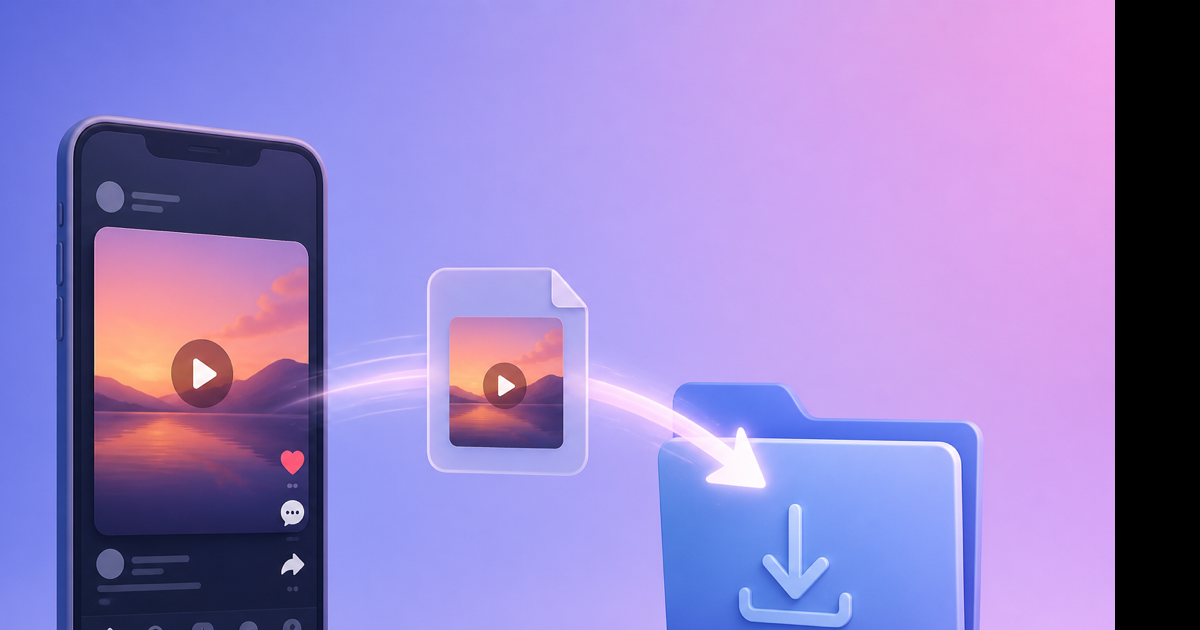
You download video from Instagram to a computer by saving it on your phone first and transferring the MP4, or by requesting Meta's Download your information export and unzipping on desktop. Instagram has no "Save to Downloads folder" button on instagram.com for arbitrary Reels. Videozify doesn't pull video from instagram.com URLs—we edit files already on your machine. This guide is the desktop-first workflow: phone → PC/Mac → editor, including transfer speeds, folder paths, and what to do in Premiere or DaVinci after the file lands.
Why desktop editors need a local file
Premiere Pro, DaVinci Resolve, and Final Cut can't import a Reels URL. They need .mp4 on disk. How to download video from instagram for editing means:
- Get the MP4 off Instagram (officially).
- Move it to your project drive.
- Import into your NLE—or trim/compress in a browser first.
Skipping step 1 with a shady downloader risks malware and a re-encoded file that falls apart on the timeline.
Path A: Phone save → computer transfer
Step 1: Save on phone
- Instagram app → your profile → open the Reel or video post.
- ⋯ → Save to device.
- Confirm in Photos/Gallery.
Step 2: Transfer to PC or Mac
| Phone | Computer | Method | Speed |
|---|---|---|---|
| iPhone | Mac | AirDrop | ~30 sec for 30 MB |
| iPhone | Windows | USB + Photos import | 1–2 min |
| Android | Any | USB file transfer | 1–2 min |
| Any | Any | Google Drive / Dropbox | Depends on upload |
Mac tip: AirDrop lands in Downloads. Drag to your Projects/Instagram/ folder immediately—Downloads gets messy.
Windows tip: After USB import, copy from This PC\Apple iPhone\Internal Storage\ or Android's DCIM to D:\Video\.
Step 3: Verify before editing
Right-click → Properties (Windows) or Get Info (Mac). Check:
- Format: MP4 (H.264 video, AAC audio)
- Resolution: Usually 1080×1920 for Reels
- Duration: Matches what you posted
Corrupted files play choppy in VLC too—re-save from Instagram before blaming your editor.
Path B: Meta export straight to desktop
Best for 50+ videos or when Save to device is blocked by licensed audio.
- Open instagram.com in Chrome/Firefox (logged in).
- Settings and privacy → Your activity → Download your information.
- Customize: Reels, Posts, date All time, quality High.
- Format HTML if you want clickable previews; JSON for automation.
- Create export → check email (6–48 hours typical).
- Download ZIP on your computer directly—don't try to unzip 15 GB on a phone.
- Extract with 7-Zip (Windows) or Archive Utility (Mac).
- Search extracted folders for
.mp4.
Export videos are organized by date in nested folders. A quick terminal search:
find ~/Downloads/instagram-* -name "*.mp4"
Path C: Browser-only (no phone cable)
If the video is yours and already on your phone in Photos:
- Upload to iCloud Photos or Google Photos from phone.
- Open icloud.com or photos.google.com on desktop.
- Download the MP4 to your computer.
Extra cloud step, but works from a hotel laptop with no USB cable.
Import into your editor
Once the MP4 sits on disk:
Premiere Pro: File → Import → select MP4. Match sequence settings to 1080×1920 vertical if editing for Reels re-upload.
DaVinci Resolve: Media pool → Import. Instagram's compression is already heavy—avoid re-compressing until final export.
Quick browser trim first: If you only need to cut 5 seconds before a heavy NLE import, use Videozify's video trimmer—upload, set in/out points, download lighter file.
What Videozify does (and doesn't)
| Action | Supported? |
|---|---|
| Paste instagram.com/reel/… URL | No |
| Upload saved MP4 from disk | Yes |
| Trim, compress, extract audio | Yes |
| YouTube URL conversion | Yes — YouTube to MP4 |
We're honest about scope. Instagram video reaches us only after you saved it through Meta's tools.
Troubleshooting desktop workflow
Transfer stuck at 0%: Try different USB port, unlock phone, enable "Transfer files" not "Charge only."
ZIP won't extract: Disk full. Instagram exports can exceed 10 GB for active creators.
Video imports but no audio in Premiere: Instagram sometimes exports odd AAC profiles. Transcode through extract audio and re-link, or use VLC to remux.
Wrong aspect ratio in timeline: Instagram Reels are 9:16. Set sequence to match before editing.
Conclusion
Desktop workflow: Save to device on phone → USB/AirDrop/cloud to PC, or Download your information for bulk. Import into your editor or trim in our browser tool first.
Ready to cut the clip? Free video trimmer — upload your saved Instagram MP4.