
How to download music to my PC
You download music to your PC by saving MP3 files from a browser converter, purchasing tracks from a store, or ripping audio from video links you have rights to use. The file lands in your Downloads folder—usually C:\Users\YourName\Downloads on Windows or ~/Downloads on Mac—and you import it into Windows Media Player, iTunes, Music app, or VLC. A four-minute song at 192 kbps is about 5.5 MB; an hour-long podcast at 128 kbps is roughly 55 MB. This guide covers the free YouTube path most people mean when they search this phrase, plus where files go and how to fix common failures.
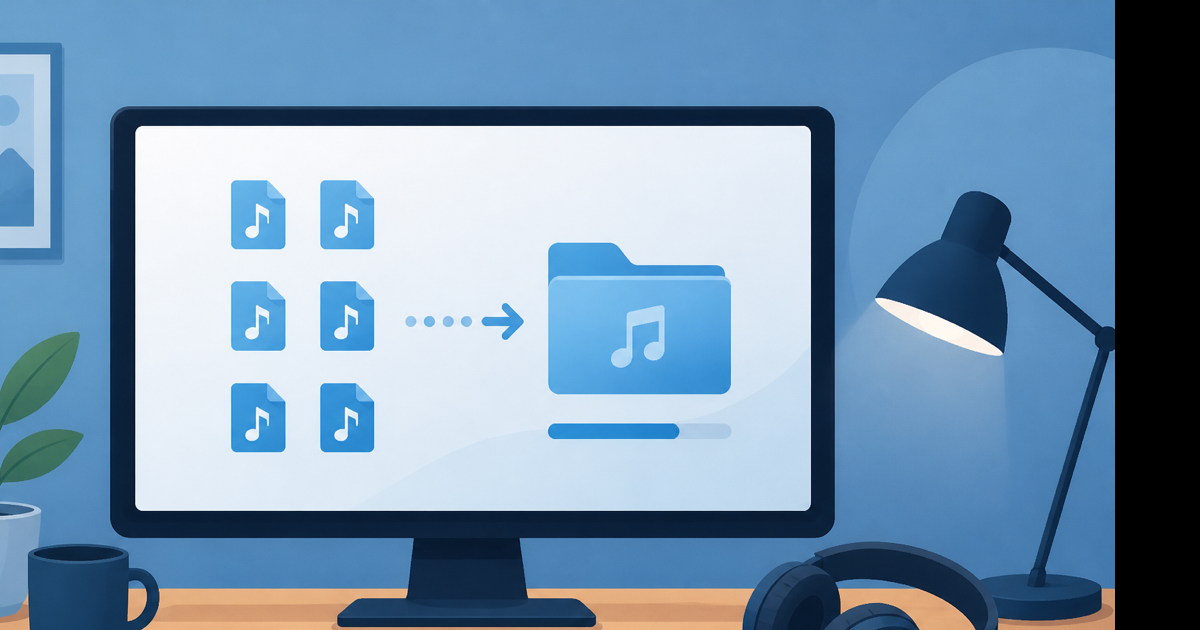
What "download music to my PC" usually means
Three different goals hide behind the same search:
| Goal | Best approach | File format |
|---|---|---|
| Song from a YouTube link | Browser converter | MP3 |
| Owned Spotify/Apple Music track | Not downloadable (DRM) | — |
| Free royalty-free music | Direct download from source site | MP3 or WAV |
If someone sent you a YouTube URL, you want the first row. If you want to rip Spotify offline, that only works inside the Spotify app with Premium—and files are encrypted, not real MP3s on your disk.
Method 1: YouTube to MP3 in your browser (most common)
No software install. Works on Windows 10, Windows 11, and Mac.
- Open the YouTube video or playlist track in your browser.
- Copy the URL from the address bar—or Share → Copy link on the video page.
- Open a new tab. Go to a YouTube to MP3 converter.
- Paste the URL.
- Select 192 kbps for music or 128 kbps for speech and podcasts.
- Click convert, then download the
.mp3file. - Open File Explorer → Downloads (Windows) or Finder → Downloads (Mac).
The MP3 is yours to move, back up, or burn to a CD if you still own a drive.
Time estimate: a 3-minute song converts in 10–30 seconds on a normal home connection. A 2-hour live DJ set might take a few minutes and produce a 170 MB file at 192 kbps.
Method 2: YouTube Music Premium (official, limited)
YouTube Music Premium lets you download for offline listening inside the app. On PC, that's the YouTube Music web player or desktop experience—not a drag-and-drop MP3 on your desktop.
Limits:
- Files stay inside the app ecosystem
- Downloads stop working if you cancel Premium
- You cannot edit the audio in Audacity or drop it into a video project
Fine for commuting. Wrong tool if you need a real file in your Music folder.
Method 3: Buy or download from legitimate stores
For artists you want to support:
- Bandcamp — often MP3, FLAC, or WAV direct to Downloads
- Amazon Music, iTunes Store — purchased files download as MP3 or M4A
- Free music archives — sites like Free Music Archive offer direct MP3 links
These give you clean metadata, album art, and zero Terms of Service gray area.
Where music files go on PC
Default download locations:
| OS | Default folder | How to open |
|---|---|---|
| Windows 10/11 | C:\Users\[Name]\Downloads | File Explorer → Downloads |
| macOS | /Users/[Name]/Downloads | Finder → Downloads |
Change the default: Chrome → Settings → Downloads → Location. Pick C:\Users\YourName\Music if you want everything land there automatically.
I keep a subfolder Downloads\Music Imports and move files weekly so Downloads doesn't turn into a junk drawer.
Import into your music player
Windows Media Player / legacy Groove
- Open Windows Media Player.
- Organize → Manage libraries → Music → Add.
- Point to your Downloads folder or Music subfolder.
- Files appear in the library after a scan.
Apple Music on Mac
File → Import and select the MP3. Or drag files into the Music app window.
VLC (plays anything, no library needed)
Right-click the MP3 → Open with → VLC. No import step—VLC just plays the file.
Third-party: foobar2000, MusicBee
Both watch folders. Set Downloads as a watched directory and new MP3s appear automatically.
Bitrate guide: what to pick
| Content type | Recommended bitrate | Approx. size per 4 min |
|---|---|---|
| Music | 192 kbps | ~5.5 MB |
| Podcast / lecture | 128 kbps | ~3.7 MB |
| High-quality archive | 320 kbps | ~9 MB |
128 kbps is fine for spoken word. For music you'll listen to on decent headphones, 192 kbps is the sweet spot. 320 kbps is overkill for most YouTube sources—the upload wasn't lossless to begin with.
Troubleshooting on PC
Converter says video unavailable — Private, age-restricted, or region-blocked. Test a public music video from a major label. If that fails too, see can't download YouTube videos anymore.
Download blocked by browser — Edge SmartScreen or Chrome may flag unfamiliar domains. Use a reputable converter. Click Keep if you trust the source.
MP3 won't import — File may be incomplete. Re-download. Check file size isn't 0 KB.
Wrong song downloaded — You pasted a playlist URL. Use the single-video link for one track.
Need to trim intro silence — Use the audio trimmer after download.
Organizing music after download
Quick habits that save pain later:
- Rename files:
Artist - Title.mp3instead ofyt_mp3_48291.mp3 - Add album art in MusicBee or iTunes if missing
- Back up to an external drive or Google Drive—MP3s are small; 1,000 songs at 192 kbps is roughly 5–7 GB
Legal note
Downloading copyrighted music from YouTube without permission violates YouTube's Terms of Service and may infringe copyright. Use converters for royalty-free tracks, Creative Commons uploads, or your own content. Buy tracks you love when you can.
Conclusion
The fastest path to music on your PC: copy a YouTube link, convert to MP3 at 192 kbps, save to Downloads, import into your player. For music you plan to keep long-term, buy from Bandcamp or iTunes when possible.
Start here: YouTube to MP3 converter — paste a link, pick your bitrate, download to your PC. Free, no signup.