
How to convert YouTube video to MP3
You convert a YouTube video to MP3 by pasting the video URL into an online converter, selecting a bitrate, and downloading the audio file. The converter strips the video track and encodes what's left as a compressed .mp3. No desktop software required—I do this from my phone half the time when a podcast episode only exists on YouTube. This guide covers the conversion steps, bitrate tradeoffs, and the difference between "convert" and "download" when people search how to convert youtube video to mp3.
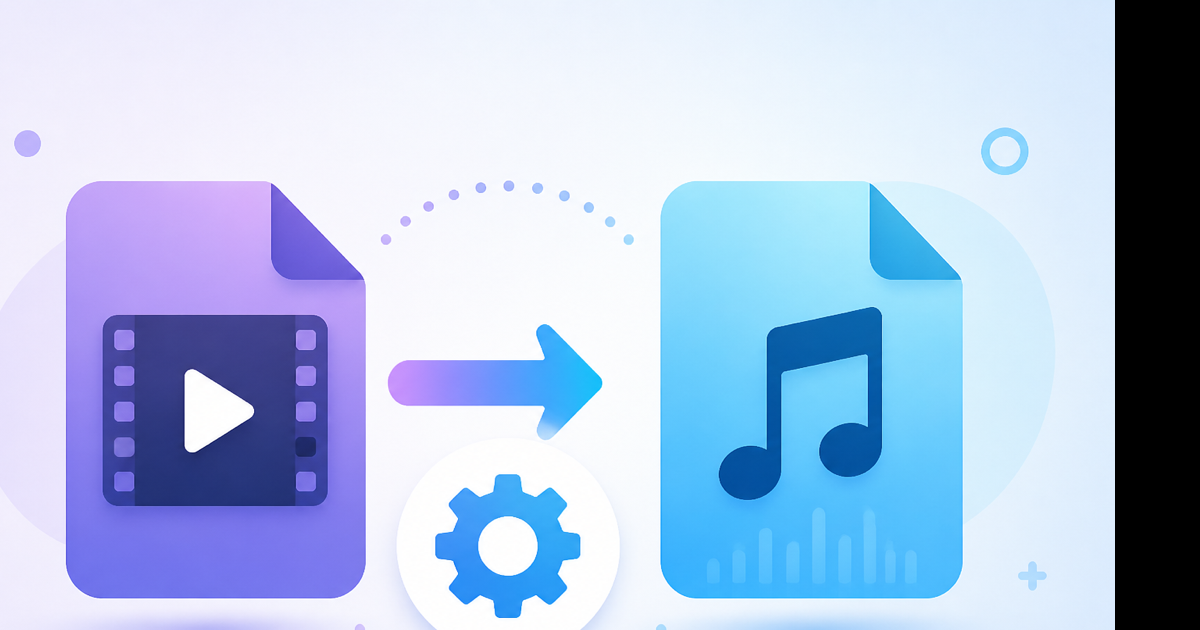
Convert vs download: same result, different wording
Google treats these queries similarly, but the mechanics are identical:
- YouTube hosts a video file with separate audio and video streams.
- A converter fetches the stream, discards video, encodes audio as MP3.
- You save the MP3 locally.
"Download MP3" and "convert to MP3" mean the same thing in practice. The word convert emphasizes format change (MP4 → MP3). The word download emphasizes getting a file offline. Both end with an MP3 on your disk.
What you need before converting
- A public YouTube URL (works with regular videos, Shorts, and most uploads)
- A browser (Chrome, Safari, Firefox, Edge—all fine)
- Roughly 30–60 seconds for a typical song-length video
You do not need:
- YouTube Premium
- FFmpeg installed locally
- An account on the converter site (Videozify doesn't require one)
Step-by-step: convert YouTube video to MP3
- Open the YouTube video in any browser or the YouTube app.
- Copy the URL—address bar on desktop, Share → Copy link on mobile.
- Open a YouTube to MP3 converter in a new tab.
- Paste the URL into the input field.
- Choose bitrate (see table below).
- Click Convert or equivalent. Wait for processing.
- Click Download when the MP3 link appears.
- Save the file—Downloads folder on desktop, Files or Downloads on phone.
A 4-minute video at 192 kbps produces a file around 5.5 MB. Same video as 720p MP4 would be 80–100 MB. That's why conversion matters when you only need sound.
Choosing the right bitrate
Bitrate controls quality and file size. MP3 is lossy—you're throwing away data either way, but higher bitrate throws away less.
| Bitrate | Best for | 5-min file size |
|---|---|---|
| 128 kbps | Speech, lectures, podcasts | ~5 MB |
| 192 kbps | Music, mixed content | ~7 MB |
| 320 kbps | Music when you want max MP3 quality | ~12 MB |
YouTube's own audio stream is often 128–160 kbps equivalent. Converting at 320 kbps doesn't magically restore lost quality—it just wastes space sometimes. I default to 192 kbps for music and 128 kbps for talking heads.
Converting on phone vs computer
Desktop (Windows/Mac): Fastest workflow. Copy URL, paste, download, file lands in Downloads. Drag into iTunes, Music, Spotify local files, or a DAW.
iPhone: Safari works. After download, tap the file in Safari Downloads → Share → Save to Files. Import to your music app from there. MP3 won't appear in Photos—that's for video.
Android: Chrome → download → find in Files/Downloads → open in your music player.
Chromebook: Browser-only is ideal. No Linux or extension required.
For other audio formats (M4A for Apple devices, WAV for editing), browse the YouTube converter hub.
After conversion: trim, join, or extract further
Sometimes you only want 30 seconds of a 45-minute video.
- Convert the full video to MP3 first.
- Upload the MP3 to an audio trimmer.
- Set in/out points. Export the clip.
Need two songs as one file? Use the audio joiner after converting each track separately. Videozify doesn't batch-convert playlists—one URL per job.
What blocks conversion
Converters aren't magic. These fail consistently:
| Blocker | What you see | Fix |
|---|---|---|
| Private video | "Unavailable" | Get a public link |
| Age-restricted | Sign-in prompt on YouTube | Most tools can't bypass |
| Live stream in progress | Timeout or error | Wait until it ends |
| Copyright-blocked music | Error mid-convert | Try another source |
| Playlist URL | Wrong input | Use single video URL |
Test with a known public video (any creator vlog) to confirm your browser and connection work before blaming the tool.
Quality expectations (be realistic)
You're converting from a lossy stream. The MP3 won't beat a CD or Bandcamp purchase. Artifacts show up most in:
- Cymbals and hi-hats (sound "swishy" at 128 kbps)
- Quiet passages with hiss
- Already heavily compressed uploads
For reference listening while editing video, it's fine. For releasing music commercially, buy the track.
Legal note
Converting copyrighted music you don't own for redistribution violates YouTube's Terms of Service and may infringe copyright. Personal use of lectures, your own uploads, Creative Commons content, or creator-approved downloads is the intended scenario. Not legal advice.
Conclusion
Converting YouTube to MP3 is a paste-URL job: pick 192 kbps for music, 128 for speech, download, done. Skip the video track when you don't need it—you'll save storage and time.
Convert a video now: Use our free YouTube to MP3 converter—paste the link, choose quality, download in seconds.