
How do you download an Instagram video
You download an Instagram video by tapping Share → Save video on Reels and some posts when the creator enabled downloads, or by screen recording the playback and trimming the MP4 in Photos. Instagram doesn't offer a desktop "download this URL" button for other people's content. Paste-link downloader sites break often and may steal passwords— skip them. Videozify does not download Instagram videos; once you have an MP4 on your phone, you can trim or extract audio with our tools.
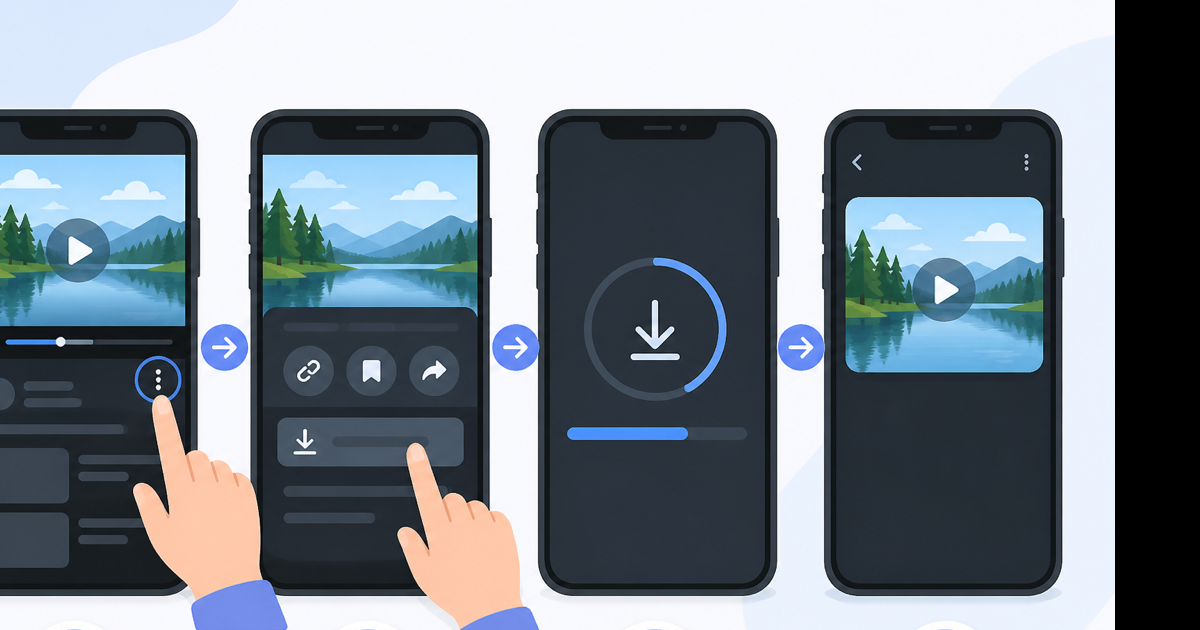
Quick pick: which method?
| Situation | Do this |
|---|---|
| Reel with Download enabled | Share → Save video |
| Feed video, Download shown | ⋯ → Download |
| Download missing | Screen record |
| Your own uploaded video | ⋯ → Download or data export |
| Need audio only | Save video, then extract from MP4 |
Official download (fastest when available)
Reels (iPhone & Android):
- Open the Reel full-screen.
- Tap Share (paper plane).
- Tap Download or Save video.
- Clip appears in Photos/Gallery— usually with Reels watermark.
Feed video posts:
- Open post.
- ⋯ menu → Download (when present).
Typical file size: 15-second Reel at 1080p ≈ 5–12 MB. Sixty-second clip ≈ 20–35 MB.
Screen recording walkthrough (iPhone)
When Save video isn't listed:
- Add Screen Recording to Control Center (Settings → Control Center).
- Open Instagram video → play from start.
- Swipe Control Center → record → wait 1 second → play video.
- Stop recording when video ends (skip trailing feed scroll).
- Photos → Edit → drag handles to trim Control Center start/end.
Audio tip: Long-press Screen Recording → leave Microphone Off so you capture in-app sound cleanly on iOS 18.
Android: Quick Settings → Screen record → same playback → trim in Google Photos.
Screen recordings run larger than official saves— expect 40–90 MB per minute at 1080p before trim.
Trim after recording
Dead air at the start (when you tapped record) wastes space and looks sloppy. After export:
- Open clip in Photos → Edit → Trim.
- Or upload to video trimmer on desktop for frame-accurate cuts.
Videozify accepts MP4 uploads— not Instagram URLs.
Why paste-link downloaders fail
You copy instagram.com/reel/... into a random site. Sometimes you get an MP4. Often you get:
- Infinite captcha loops.
- "Login to continue" phishing.
- 403 errors after Meta rotates link tokens.
These services scrape undocumented endpoints. They aren't stable products. We won't link to them.
For YouTube-hosted content (different platform), use YouTube to MP4 instead— that's what Videozify supports.
Download your own Instagram videos
- Open your post → ⋯ → Download.
- Bulk backup: Settings → Download your information → include videos → wait for ZIP email.
Exported originals beat re-downloaded Reels quality— no double compression.
Legal and etiquette
Downloading to repost without credit violates copyright. Personal offline viewing of tutorials you can't finish in one sitting is a common use case— still technically gray for content you don't own. When in doubt, ask the creator.
Troubleshooting
Save video missing on Reel — Uploader disabled or music licensing block.
Black screen in recording — Start playback before recording, or update Instagram— old bugs hit embedded browsers.
No sound in saved file — Screen recorder muted media audio. Re-record with correct iOS media sound toggle.
Video vertical but plays horizontal — EXIF rotation issue in old players. Opens fine in Photos and modern editors.
File too big to text — Trim first, or compress the MP4 you recorded.
Conclusion
Try Share → Save video first. Fall back to screen record + trim. Don't trust paste-link sites with your account.
Have the MP4 already? Trim it free— upload required, no Instagram URL support.